
Meta Description:
Fix Printer Driver Unavailable error in Windows 10/11 with proven solutions. Restore printing functionality quickly and safely.
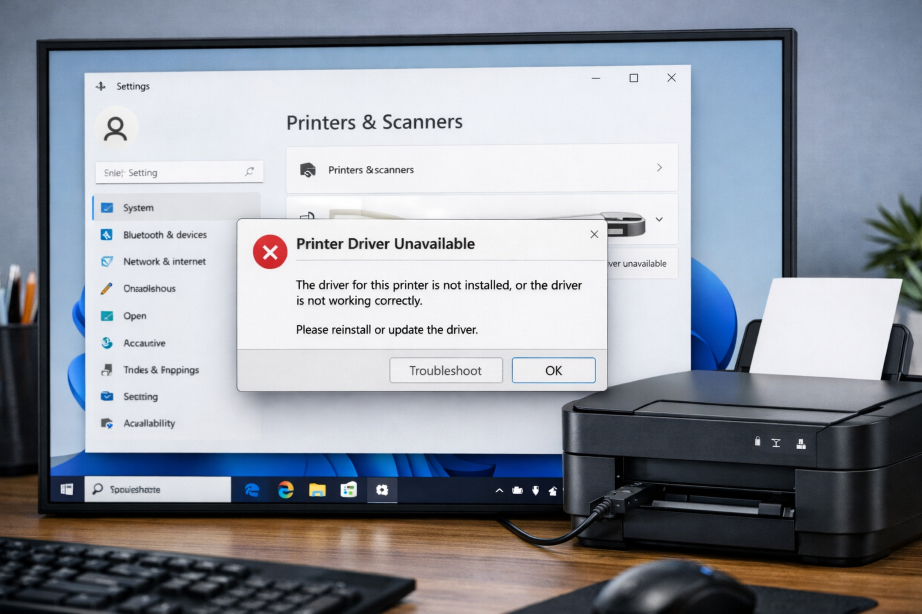
What Does “Printer Driver Unavailable” Mean?
The Printer Driver Unavailable error appears when Windows cannot communicate properly with the printer driver.
As a result:
- Printing fails
- Printer shows offline
- Print jobs remain stuck
- Windows cannot detect printer functions
Common Symptoms
- “Driver is unavailable” message
- Printer not responding
- Print queue stuck
- Printer appears offline
Main Causes
- Corrupted printer driver
- Outdated driver version
- Windows update conflicts
- Incompatible printer software
- Damaged spooler service
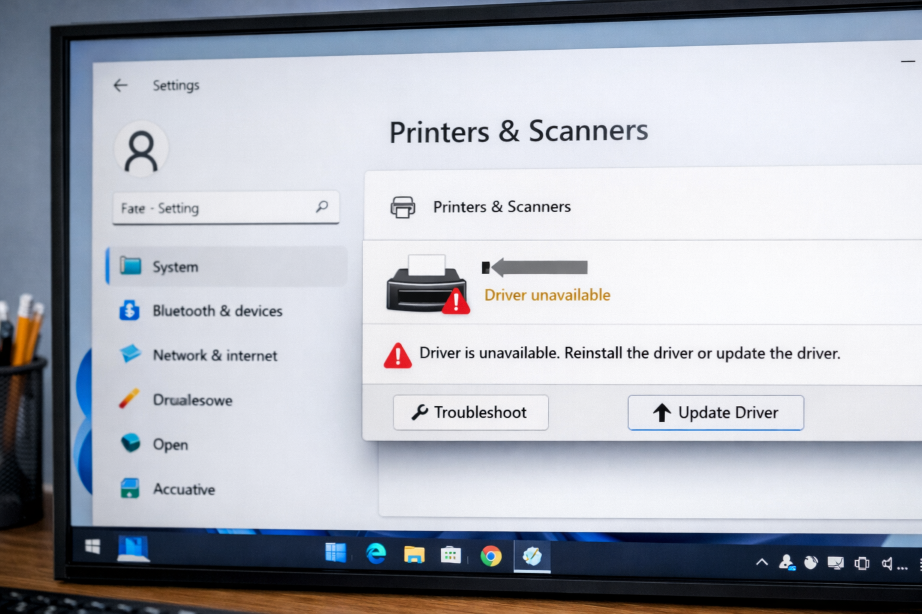
How to Fix Printer Driver Unavailable
1. Restart Printer and Computer
Start with a simple restart.
Steps:
- Turn off printer
- Restart Windows
- Turn printer back on
2. Remove and Reinstall Printer
Steps:
- Open Settings
- Bluetooth & devices
- Printers & scanners
- Remove printer
- Add printer again
3. Update Printer Driver
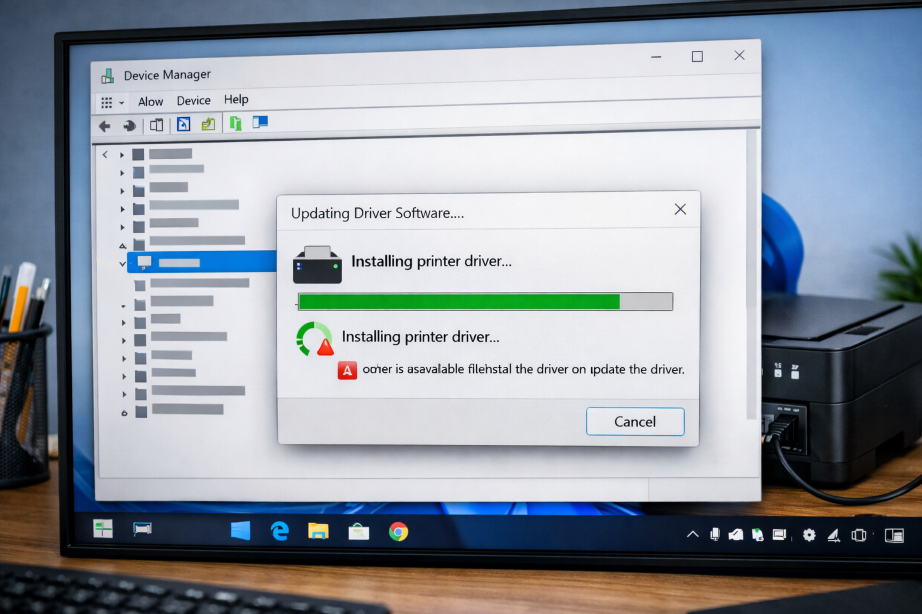
Steps:
- Open Device Manager
- Expand Print Queues
- Right-click printer
- Update Driver
4. Download Latest Driver from Manufacturer
Always use official drivers from:
- HP
- Canon
- Epson
- Brother
5. Restart Print Spooler Service
Steps:
- Press Windows + R
- Type:
services.msc
- Find Print Spooler
- Restart service
6. Run Printer Troubleshooter
Go to:
Settings → System → Troubleshoot → Other troubleshooters → Printer
7. Install Optional Windows Updates
Some printer drivers are distributed through Windows Update.
8. Run System File Repair
sfc /scannow
DISM /Online /Cleanup-Image /RestoreHealth
Advanced Fix
Clear Print Queue
Steps:
- Stop Print Spooler
- Delete files in:
C:\Windows\System32\spool\PRINTERS
- Start Print Spooler again
Prevention Tips
- Keep printer drivers updated
- Avoid unplugging printer during updates
- Install manufacturer software
Frequently Asked Questions (FAQ)
Why does my printer say driver unavailable?
Usually because the driver is corrupted, outdated, or incompatible.
Can Windows Update cause printer issues?
Yes. Some updates replace working printer drivers.
Do I need to reinstall Windows?
No. Most printer driver issues can be fixed without reinstalling Windows.
Related Articles
- Audio Driver Not Working Fix
- WiFi Driver Missing Fix
- USB Device Not Recognized Fix
- DRIVER_POWER_STATE_FAILURE Fix
🔗 Explore More Fixes
Looking for more Windows troubleshooting guides?