
Meta Description:
Fix audio driver not working in Windows 10/11 with step-by-step solutions. Restore sound quickly and safely.
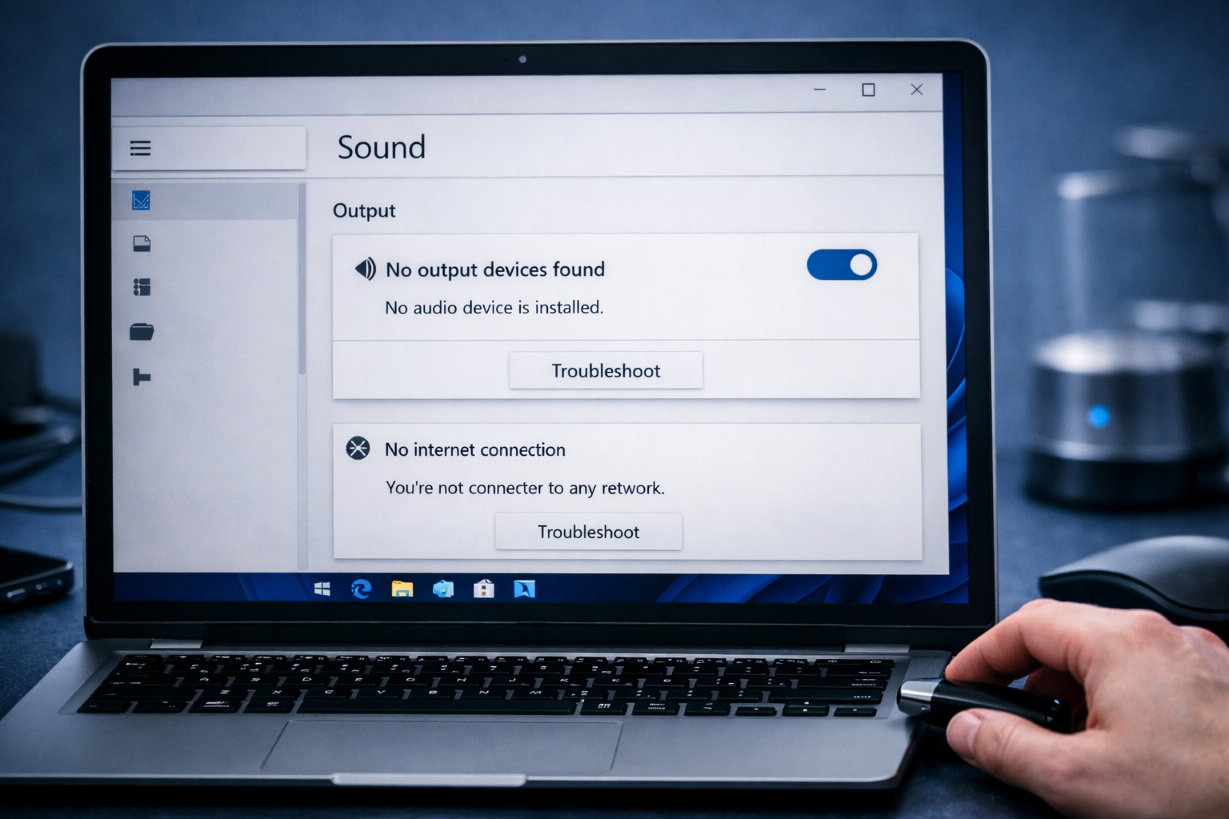
What Does “Audio Driver Not Working” Mean?
The audio driver not working issue occurs when Windows cannot properly communicate with your sound hardware.
This results in:
- No sound output
- Audio device not detected
- Sound errors in system
Common Symptoms
- No sound from speakers or headphones
- “No audio device installed” message
- Sound icon shows red X
- Audio device missing
Main Causes
- Corrupted audio drivers
- Windows update conflicts
- Disabled audio service
- Incorrect settings
- Hardware issues
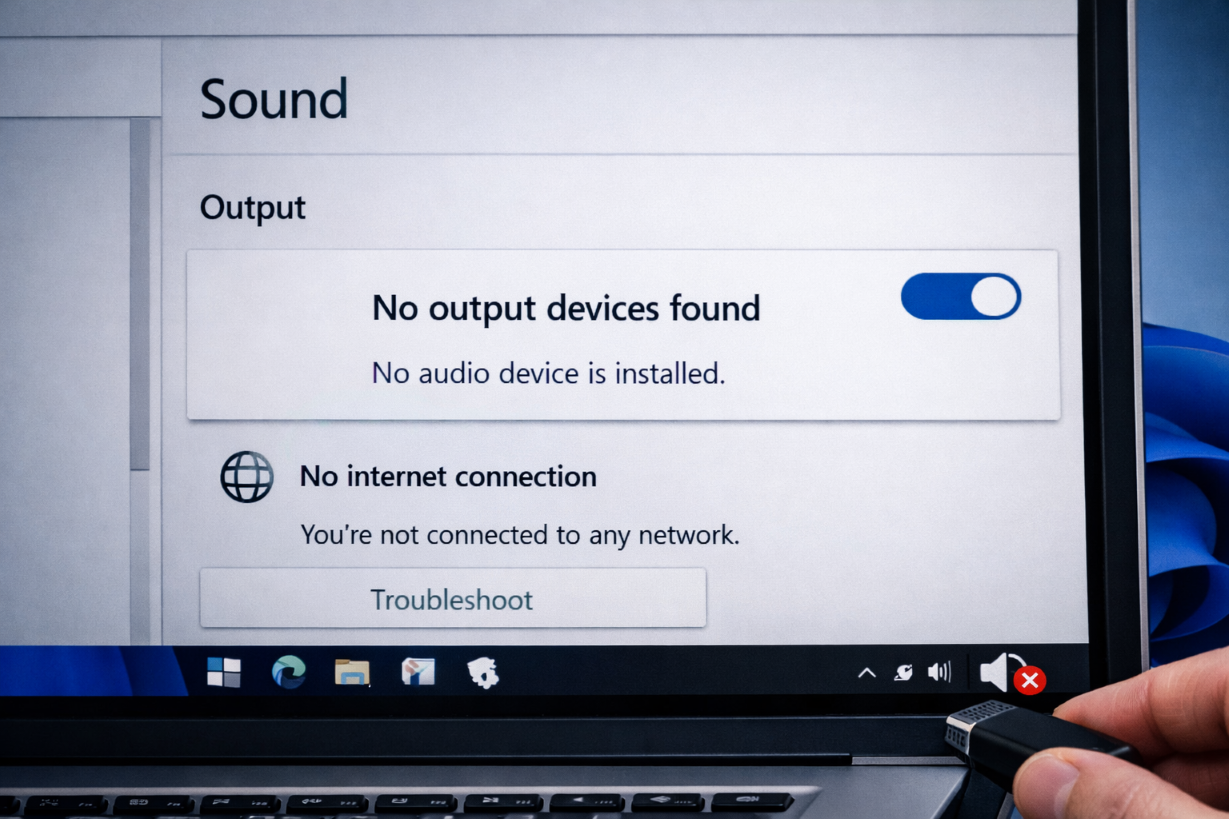
How to Fix Audio Driver Not Working
Follow these methods step by step:
1. Restart Your Computer
Temporary glitches can disable audio drivers.
2. Check Volume and Output Device
- Click speaker icon
- Ensure correct output device selected
3. Run Audio Troubleshooter
Go to:
Settings → System → Troubleshoot → Other troubleshooters → Audio
4. Update Audio Drivers
Steps:
- Press
Windows + X→ Device Manager - Expand Sound, video and game controllers
- Right-click → Update driver
👉 Related article:
Driver Not Installing Fix
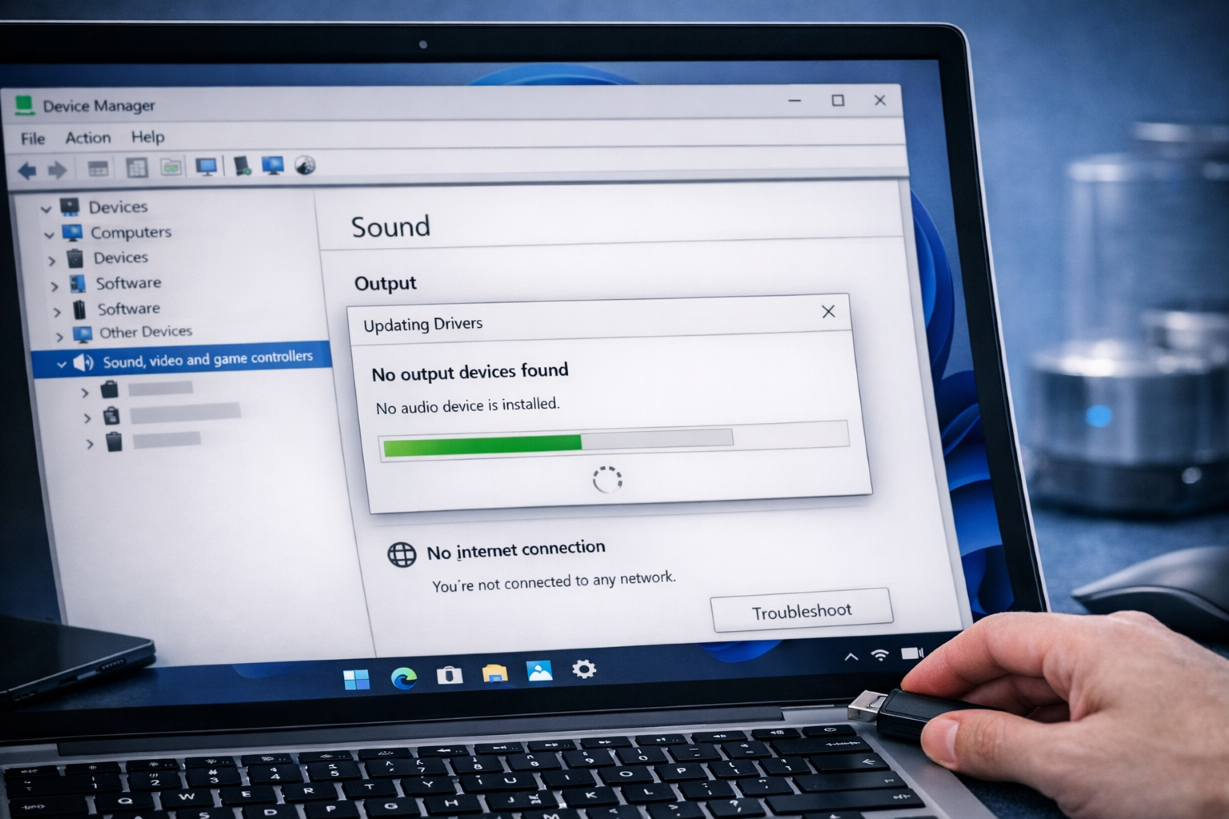
5. Reinstall Audio Driver
Steps:
- Open Device Manager
- Right-click audio device
- Click Uninstall device
- Restart PC
6. Enable Audio Services
Steps:
- Press
Windows + R - Type
services.msc - Restart:
- Windows Audio
- Windows Audio Endpoint Builder
7. Set Default Audio Device
Go to:
Sound settings → Set correct output device
8. Update Windows
Install latest updates to fix driver conflicts.
9. Check Hardware
- Test headphones/speakers
- Try different audio port
10. Run System File Repair
sfc /scannow
DISM /Online /Cleanup-Image /RestoreHealth
Advanced Fix
Install Manufacturer Audio Driver
Download from:
- Realtek
- Laptop brand website
Prevention Tips
- Keep drivers updated
- Avoid forced shutdown
- Use official drivers
Frequently Asked Questions (FAQ)
Why is my audio not working?
Usually due to driver issues or disabled services.
Can Windows update break sound?
Yes, it may install incompatible drivers.
Do I need to reinstall Windows?
No, most audio issues are fixable easily.
Related Articles
🔗 Explore More Fixes
Looking for more Windows solutions?
👉 Complete BSOD Fix Guide