
Meta Description:
Fix USB device not recognized error in Windows 10/11 with step-by-step solutions. Resolve USB issues quickly and safely.
What Does “USB Device Not Recognized” Mean?
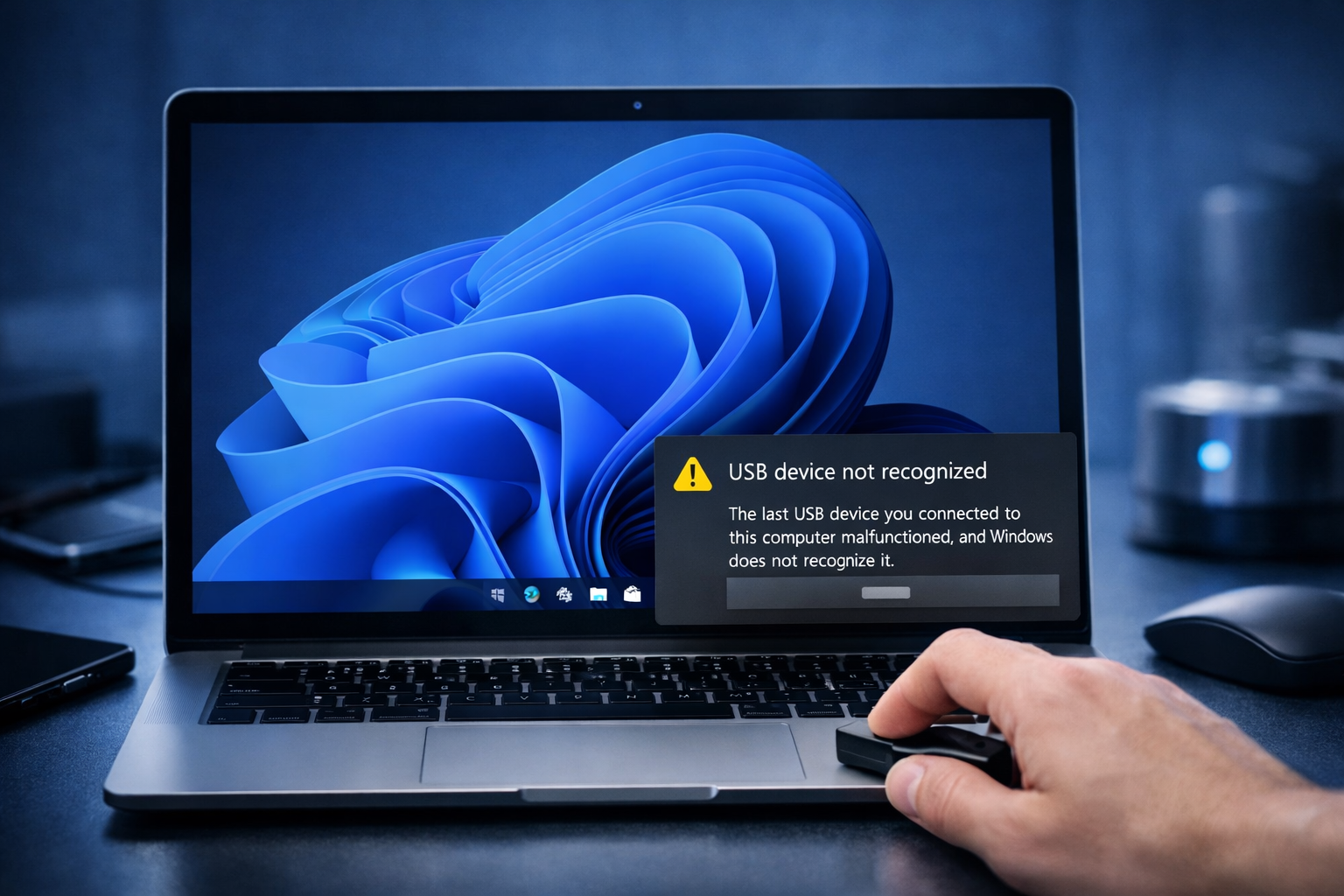
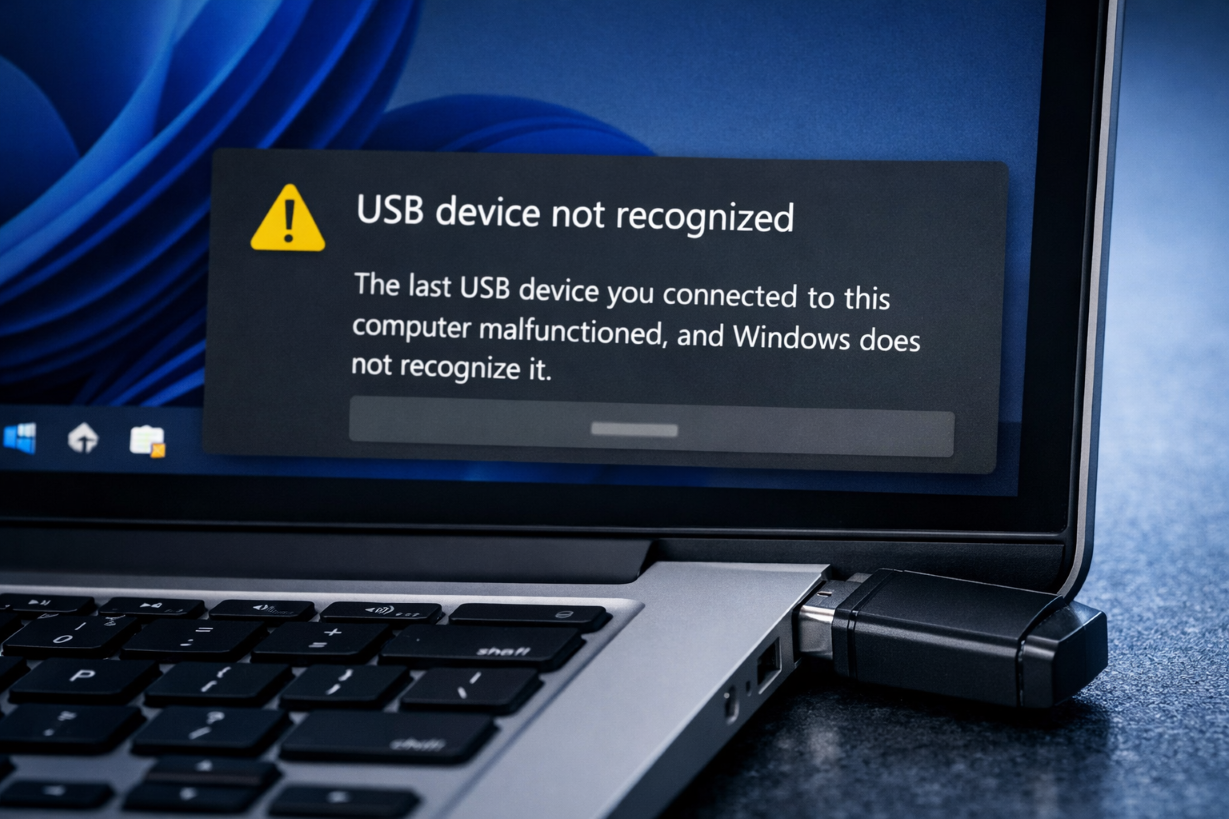
The USB Device Not Recognized error appears when Windows fails to detect or communicate with a connected USB device.
This can affect:
- Flash drives
- External hard drives
- Keyboards and mice
- USB peripherals
Common Symptoms
- Pop-up: “USB device not recognized”
- Device not appearing in File Explorer
- USB device not working
- Intermittent connection issues
Main Causes
- Faulty USB ports
- Corrupted drivers
- Power supply issues
- Outdated chipset drivers
- Hardware failure
How to Fix USB Device Not Recognized
Follow these methods step by step:
1. Reconnect the USB Device
- Unplug the device
- Restart your PC
- Plug it into a different USB port
2. Try Another Computer
Check if the device works on another PC
👉 Helps identify hardware failure
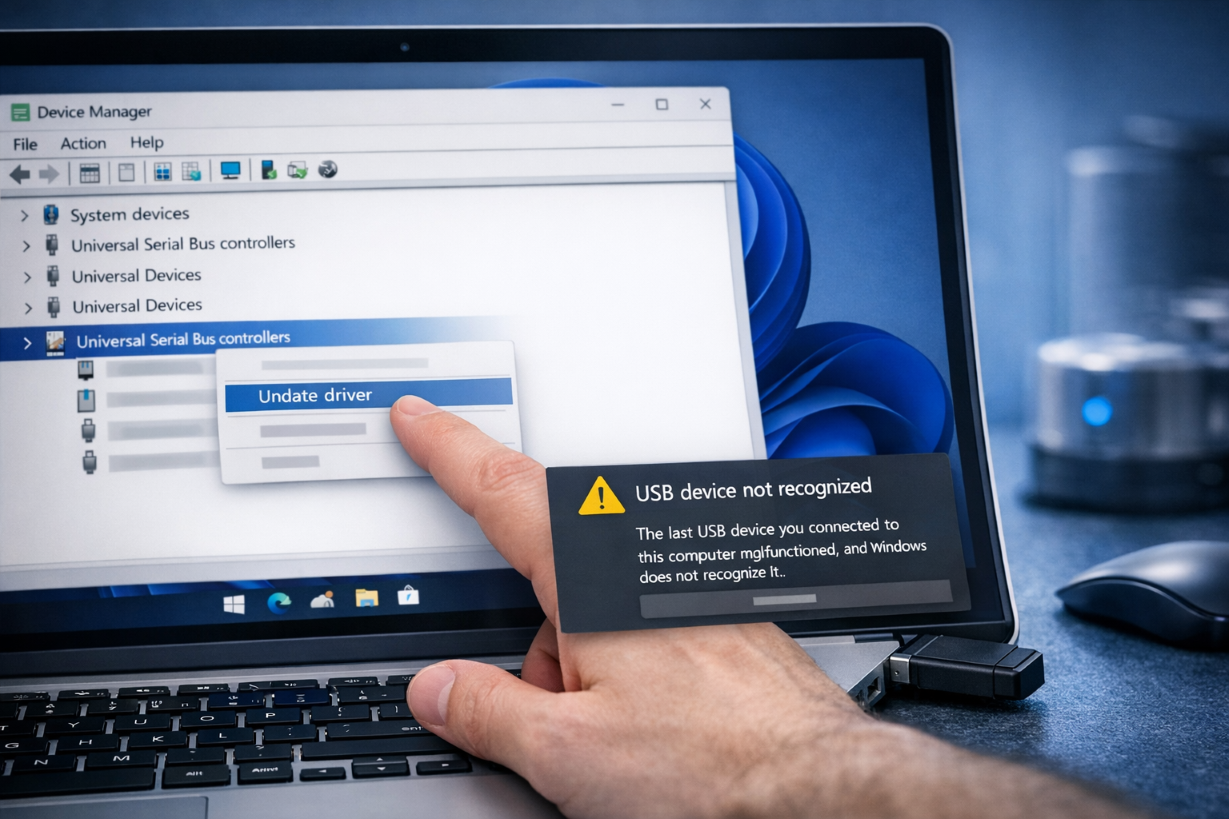
3. Update USB Drivers
Steps:
- Press
Windows + X→ Device Manager - Expand Universal Serial Bus controllers
- Right-click → Update driver
4. Uninstall USB Controllers
Steps:
- Open Device Manager
- Expand USB controllers
- Uninstall all USB devices
- Restart PC
👉 Related article:
Unknown Device Fix
5. Disable USB Power Saving
Steps:
- Open Device Manager
- Right-click USB Root Hub
- Go to Power Management
- Uncheck “Allow computer to turn off”
6. Update Chipset Drivers
Chipset drivers control USB communication.
7. Run Hardware Troubleshooter
Go to:
Settings → System → Troubleshoot
8. Run System File Repair
sfc /scannow
DISM /Online /Cleanup-Image /RestoreHealth
👉 Related article:
KERNEL_DATA_INPAGE_ERROR Fix
Advanced Fix
Check for Hardware Damage
- Try different cable
- Inspect USB port
- Replace faulty device
Prevention Tips
- Avoid cheap USB devices
- Safely eject USB
- Keep drivers updated
Frequently Asked Questions (FAQ)
Why is my USB not recognized?
This happens due to driver issues, power problems, or faulty hardware.
Can a USB port stop working?
Yes, damaged or worn-out ports can fail.
Do I need to reinstall Windows?
No, most USB issues can be fixed without reinstalling Windows.
Related Articles
🔗 Explore More Fixes
Looking for more solutions?
👉 Complete BSOD Fix Guide