
Meta Description:
Fix Bluetooth not working in Windows 10/11 with proven step-by-step solutions. Resolve pairing, driver, and connection issues quickly.
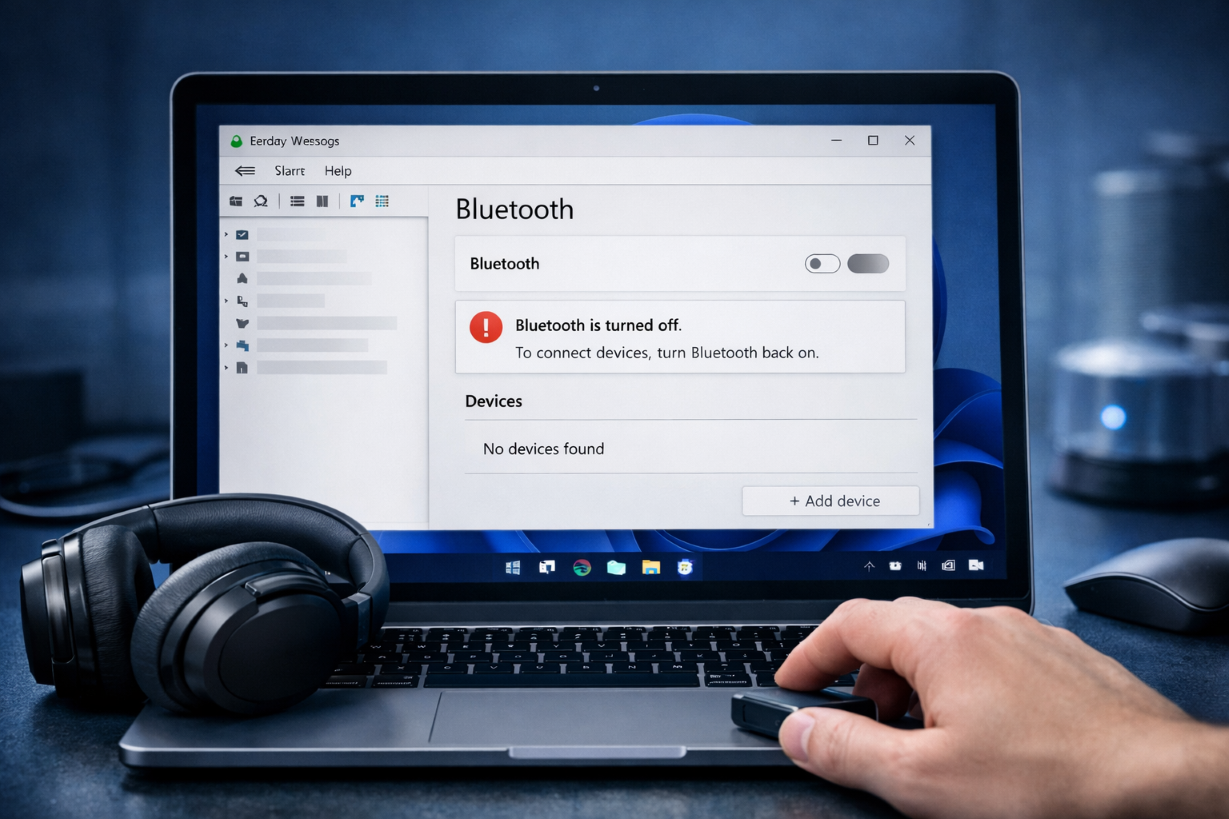
What Does “Bluetooth Not Working” Mean?
The Bluetooth not working issue happens when Windows cannot detect, enable, or connect to Bluetooth devices such as headphones, speakers, mouse, or keyboard.
This can affect:
- Wireless audio devices
- Mouse and keyboard
- Smartphones
- Printers
Common Symptoms
- Bluetooth toggle missing
- Device cannot be found
- Pairing failed
- Frequent disconnects
- No sound through Bluetooth headphones
Main Causes
- Outdated Bluetooth drivers
- Bluetooth service disabled
- Windows update conflicts
- Airplane mode enabled
- Hardware adapter issue
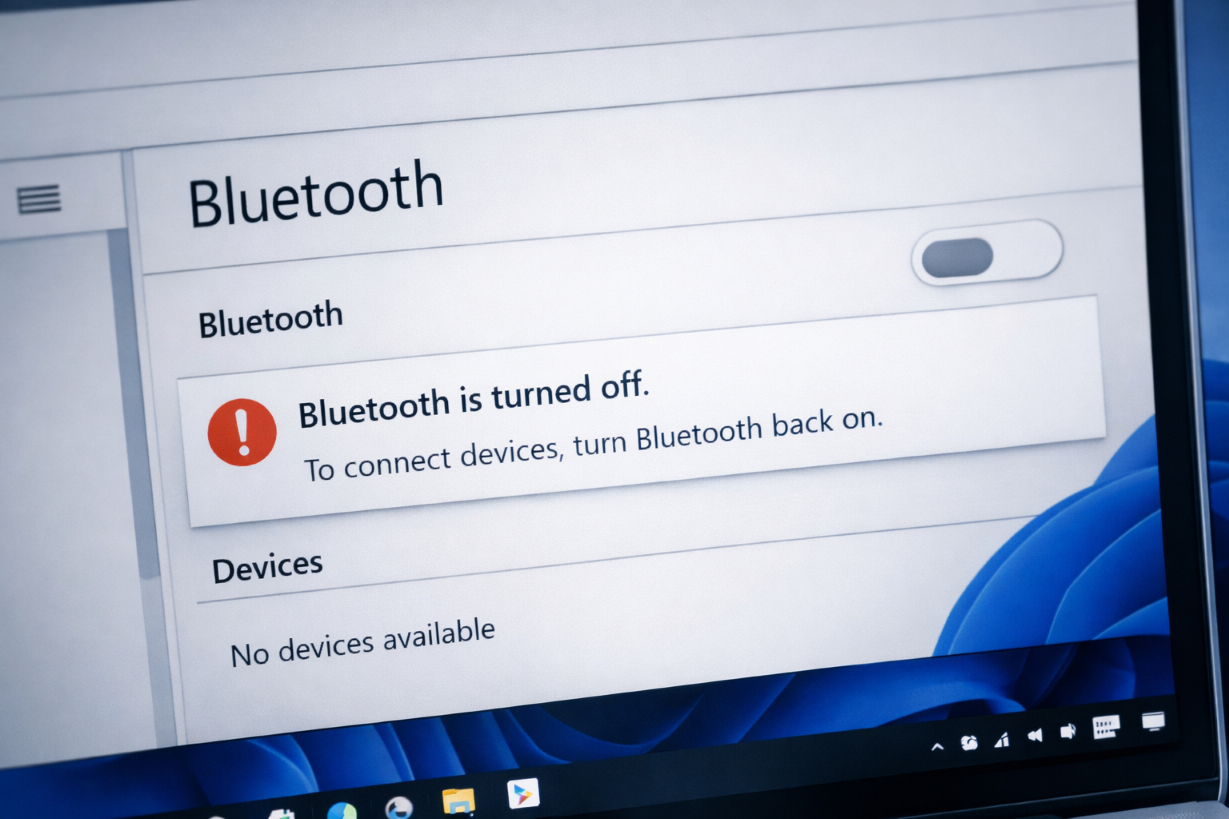
How to Fix Bluetooth Not Working
Follow these methods step by step:
1. Turn Bluetooth Off and On Again
Steps:
- Open Settings
- Go to Bluetooth & devices
- Turn Bluetooth OFF
- Wait 10 seconds
- Turn it ON again
2. Restart Bluetooth Service
Steps:
- Press
Windows + R - Type
services.msc - Find Bluetooth Support Service
- Click Restart
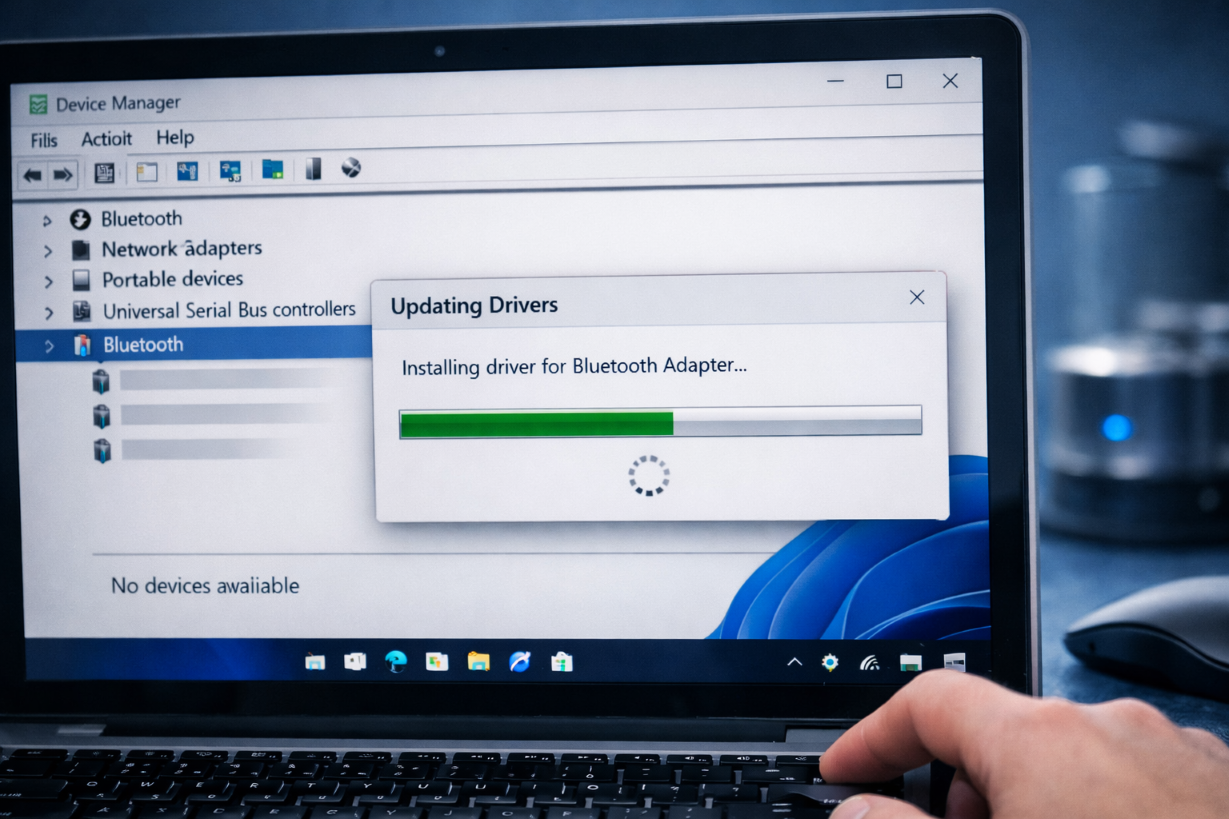
3. Update Bluetooth Drivers
Steps:
- Press
Windows + X - Open Device Manager
- Expand Bluetooth
- Right-click adapter → Update driver
👉 Related article:
Driver Not Installing Fix
4. Uninstall and Reinstall Bluetooth Driver
Steps:
- Open Device Manager
- Right-click Bluetooth adapter
- Click Uninstall device
- Restart PC
5. Run Bluetooth Troubleshooter
Go to:
Settings → System → Troubleshoot → Other troubleshooters → Bluetooth
Run the troubleshooter.
6. Disable Airplane Mode
Sometimes Bluetooth is disabled by Airplane Mode.
Go to:
Settings → Network & Internet → Airplane mode
Turn it OFF.
7. Check Device Compatibility
Some old Bluetooth devices may not support newer Windows versions.
8. Run System File Repair
sfc /scannow
DISM /Online /Cleanup-Image /RestoreHealth
Advanced Fix
Update Chipset / Wireless Drivers
Download latest drivers from your laptop or motherboard manufacturer website.
Prevention Tips
- Keep drivers updated
- Avoid too many paired devices
- Restart Bluetooth service regularly
Frequently Asked Questions (FAQ)
Why is Bluetooth missing in Windows 11?
This is usually caused by missing drivers or disabled Bluetooth services.
Can Windows update break Bluetooth?
Yes, sometimes updates install incompatible drivers.
Do I need a Bluetooth adapter?
Yes, if your PC does not have built-in Bluetooth hardware.
Related Articles
🔗 Explore More Fixes
Looking for more Windows solutions?
👉 Complete BSOD Fix Guide